
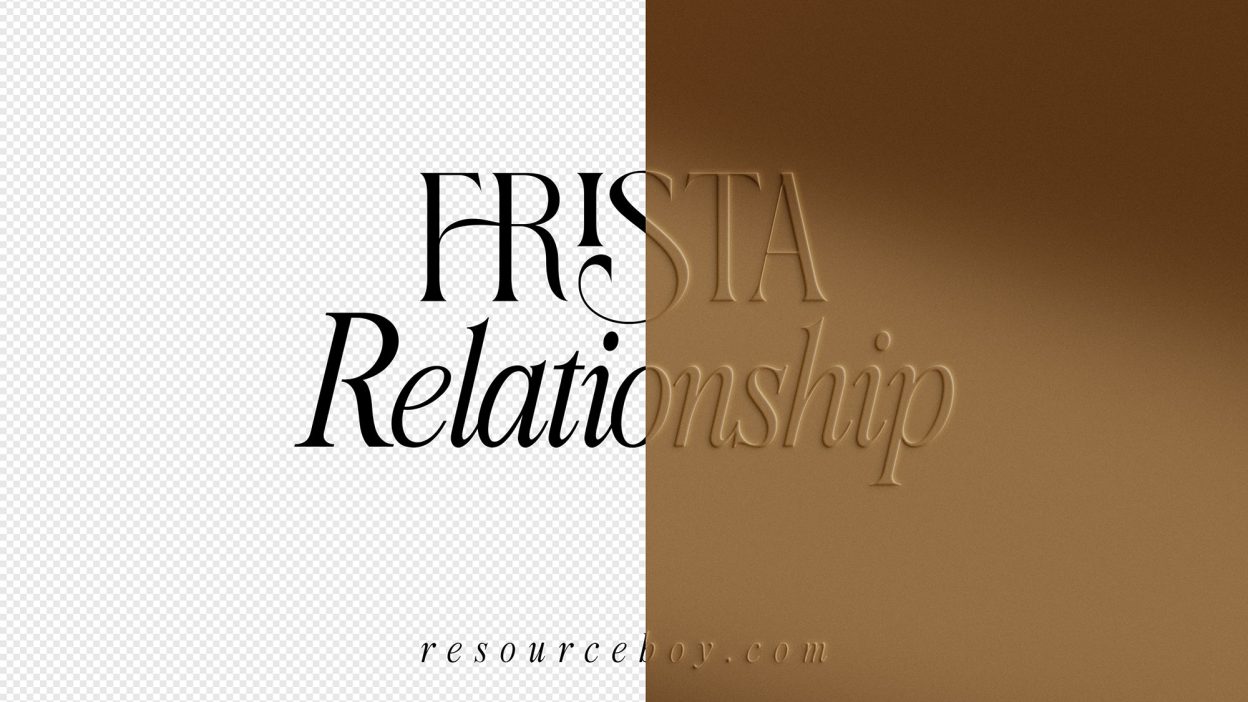

About Embossed Effect for Text and Logos
Design work moves fast. When you find a solid mockups resource, it can shave hours off a deadline. It’s made for Adobe Photoshop, and the previews show what you can expect.
We can’t tell you where to put this pure beauty to use. It’s not fair at all! It would be such a cruel way to treat such a majestic piece of graphics to limit it to only a few purposes. Especially when it’s so obvious how terrific it can be for all kinds of your creative design works and more. You definitely will find your ideal typographies in our logo font bundle for any branding and professional project of yours and can redesign it with the current effect. It may be minimal but that subtle feminine theme works better than any bold style. We know you don’t usually find many text effects in our exclusive collection, but that just makes this embossed effect of RB much more one-of-a-kind. And the free commercial license? Let’s just say you couldn’t get any luckier. And guess what? Our embossed text effect can be used a lot more tastefully. The only thing it’s missing is one of our shadow overlays. It’s a good thing they’re also free to download, right? Think of all the inspired logos you’re gonna make with this embossed effect of ours. It works on any text, so why not on shapes too? The background color changes as you wish, giving you full control over the template. We’re telling you, you’ve just hit the gold mine and you don’t even know it.
Quick details: License: Personal & Commercial use. Designer: Resource Boy. Popularity: 11,032 downloads.

What you can do with it
It’s editable, flexible, and pretty forgiving if you like to experiment. Use it for album covers, brand headlines, social banners, or any layout where you want a cleaner visual hook.
How to use it in Adobe Photoshop
Download, unzip, load the asset, then tweak until it fits your design.
- Download the ZIP file using the button below.
- Unzip the archive to a clean folder.
- Open Adobe Photoshop and load the included files (brushes via the Brushes panel; textures via Place/Embed; mockups/effects by editing Smart Objects).
- Apply it to your text or layer, then adjust size and position.
- Fine-tune opacity, blending mode, and color until the result feels balanced.
Practical tips
- Test it on both light and dark backgrounds.
- Use Smart Objects when possible for clean scaling.
- Try a different blending mode before you give up on the look.
- Duplicate your layer before applying anything.
- Lower opacity first, then adjust contrast.
If something looks “too much,” small changes usually fix it. Opacity, blending mode, and a soft mask solve most issues.
Preview images
These previews are included with the original post so you can judge edges, texture strength, and readability.
FAQ
Can I use it in client work?
The listed license is Personal & Commercial use. For important jobs, read the license text inside the download.
Will it work on older versions?
Most assets like this work fine on recent versions of Adobe Photoshop. If you’re on an older build, test it in a duplicate file first.
Download Embossed Effect for Text and Logos
Use the download button below. If your download is large, give it a minute to complete before extracting.