

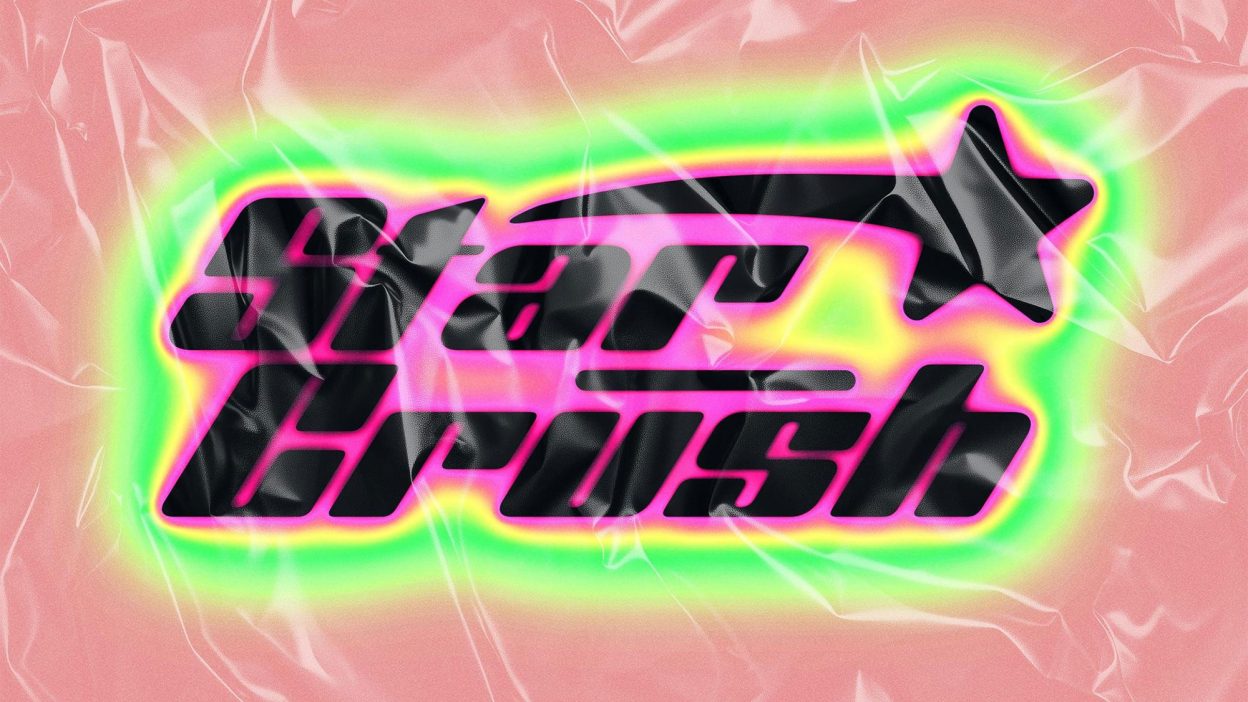
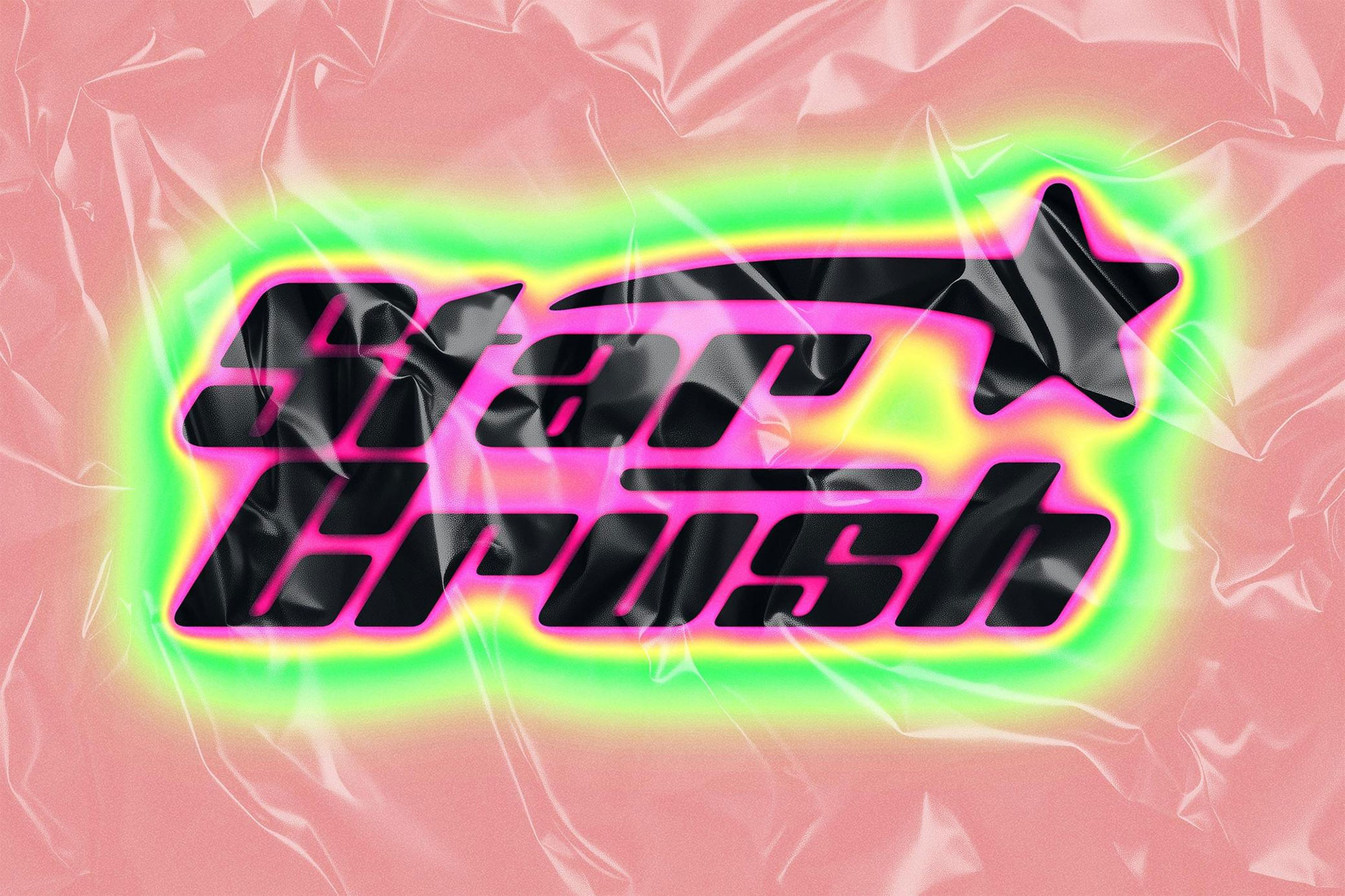
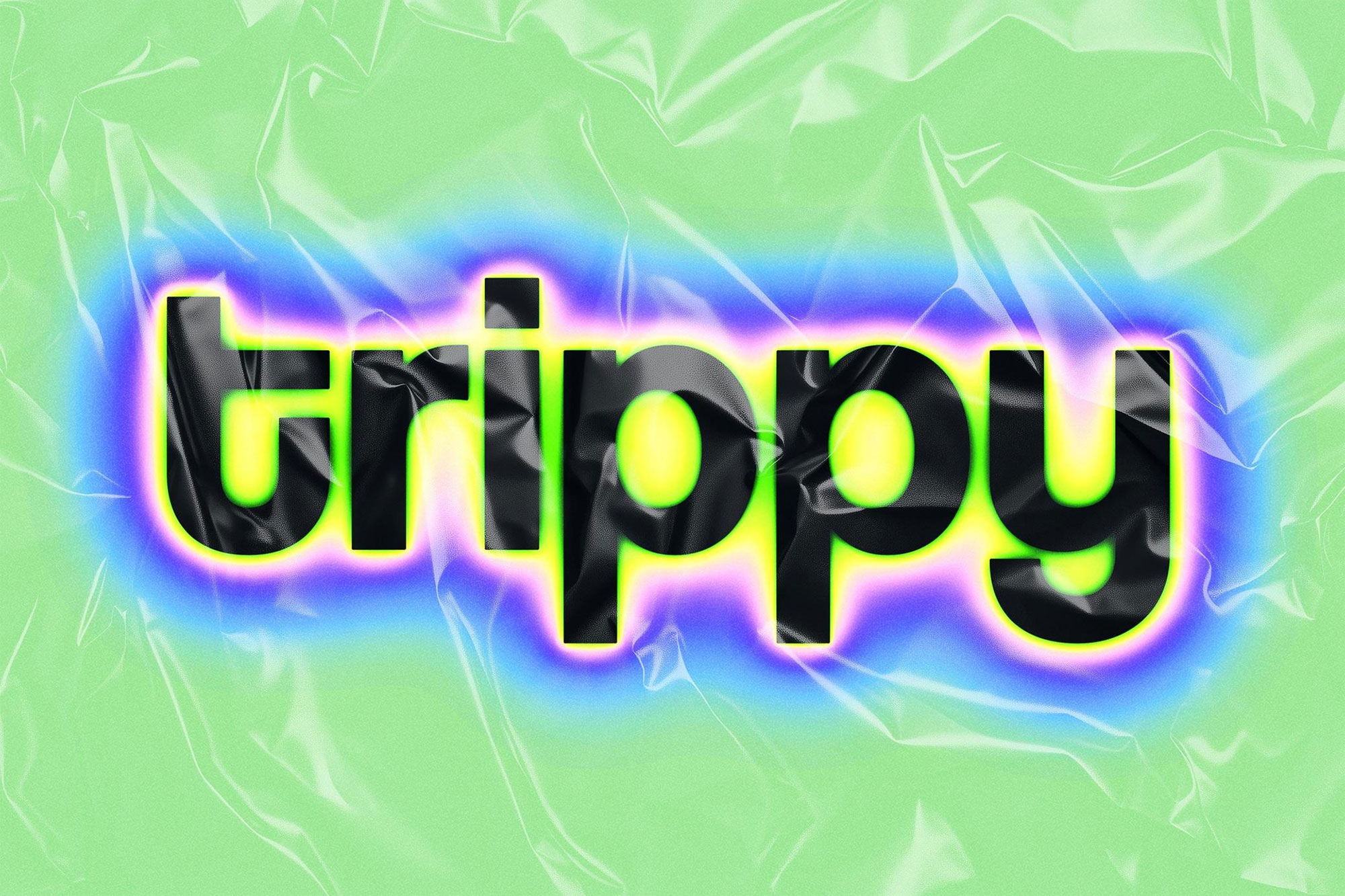
About Trippy Blur Text Effect
Design work moves fast. When you find a solid text effects resource, it can shave hours off a deadline. It’s made for Adobe Photoshop, and the previews show what you can expect.
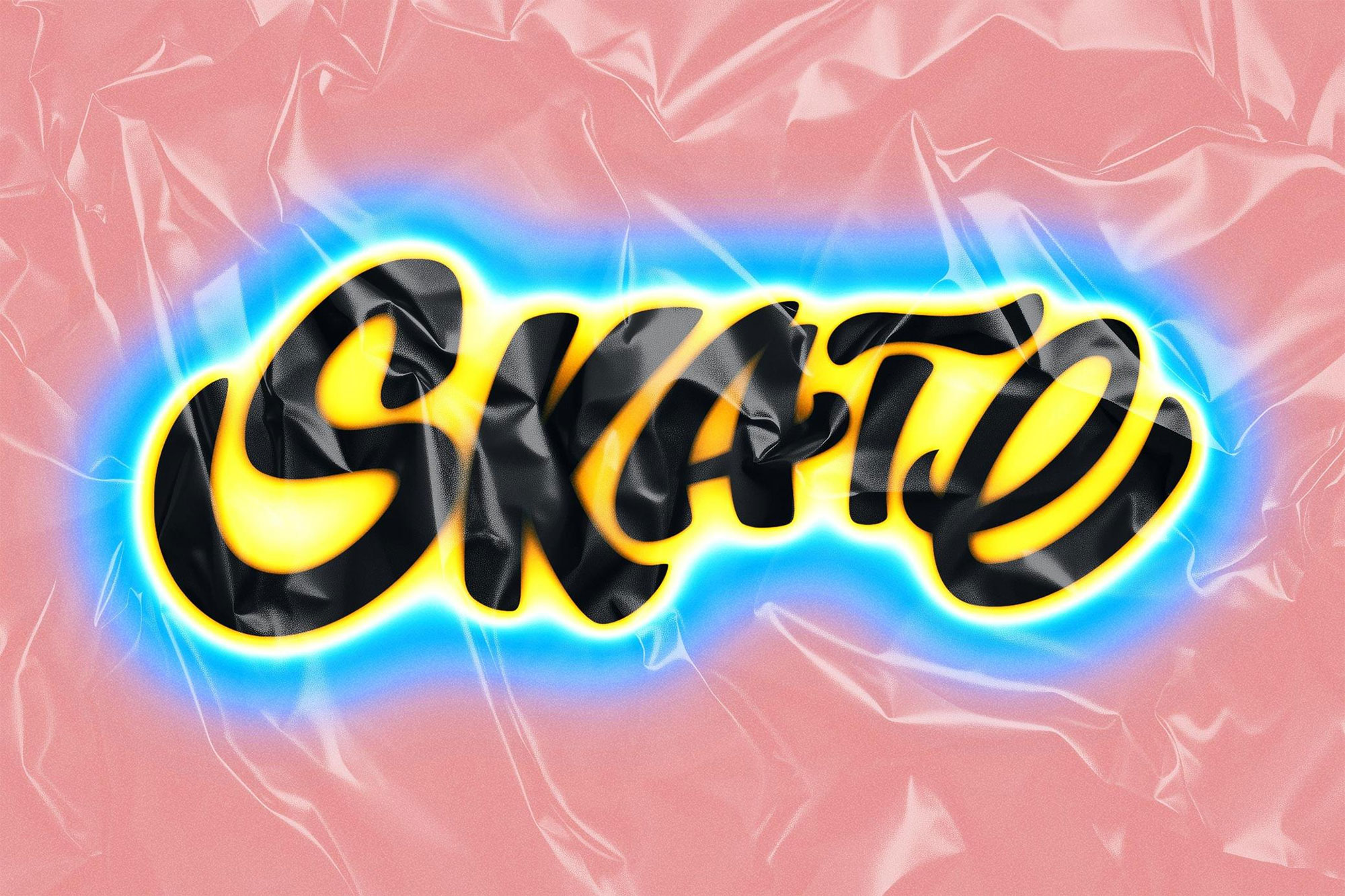
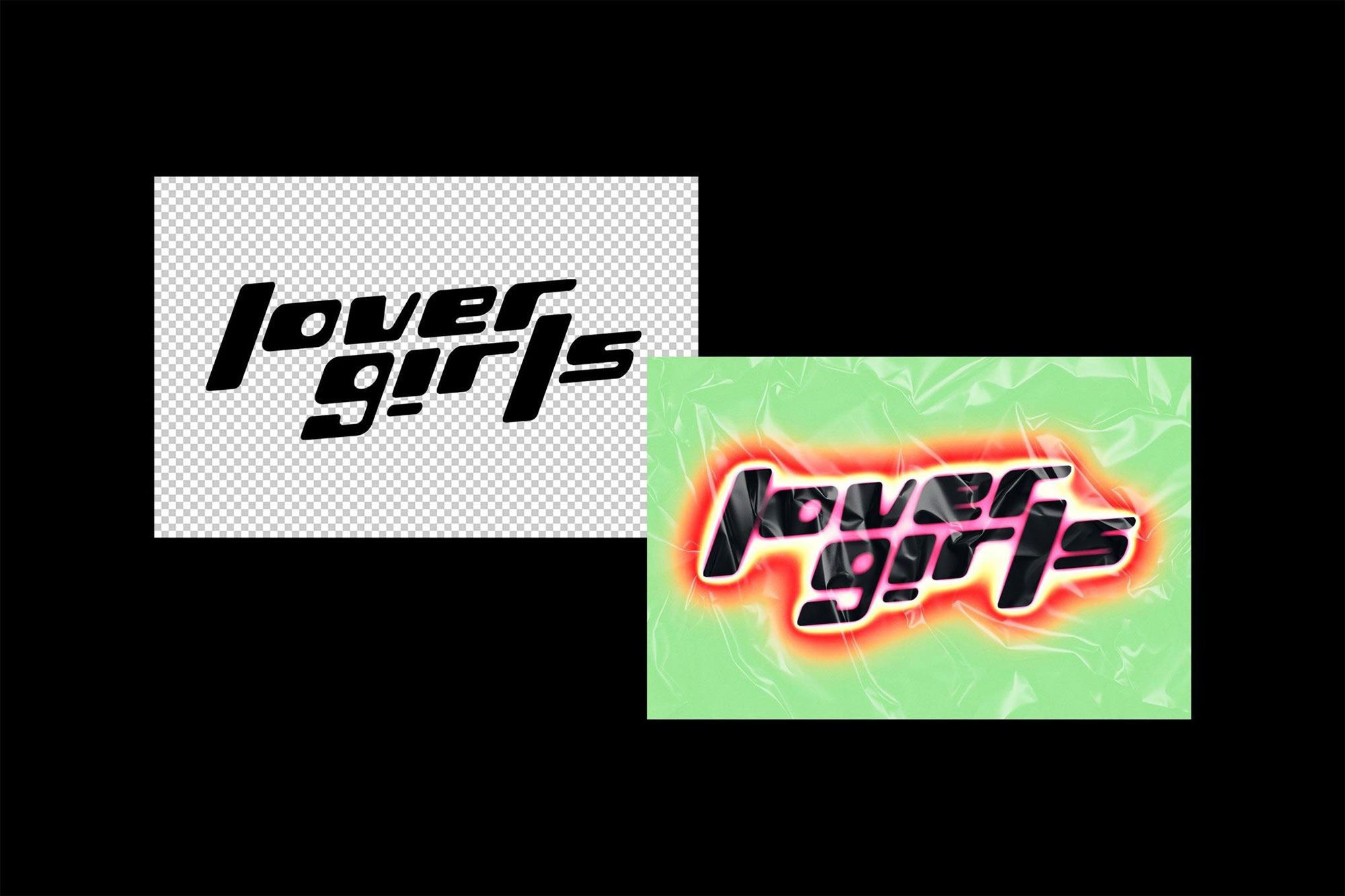
Dive into a world of psychedelic creativity with this trippy blur text effect! This mesmerizing effect combines vibrant colors, dynamic blurs, and surreal distortions to create a bold and eye-catching look for your typography. Perfect for posters, album covers, or branding projects, this effect adds a playful and artistic vibe to your designs. The easy-to-use Photoshop file and fully customizable layers make it simple to adapt to your creative vision, ensuring your work stands out with a trippy, hypnotic edge. Download this trippy blur text effect for free and give your projects a vibrant, surreal twist. Ideal for designers looking to experiment with psychedelic or abstract styles, this effect is a must-have in your toolkit. Don’t miss out on this freebie—bring a kaleidoscope of creativity to your designs today!
Quick details: License: Personal & Commercial use. Designer: Pixelbuddha. Popularity: 1,393 downloads.
What you can do with it
It’s editable, flexible, and pretty forgiving if you like to experiment. Use it for social banners, packaging concepts, posters, or any layout where you want a cleaner visual hook.
How to use it in Adobe Photoshop
Download, unzip, load the asset, then tweak until it fits your design.
- Download the ZIP file using the button below.
- Unzip the archive to a clean folder.
- Open Adobe Photoshop and load the included files (brushes via the Brushes panel; textures via Place/Embed; mockups/effects by editing Smart Objects).
- Apply it to your text or layer, then adjust size and position.
- Fine-tune opacity, blending mode, and color until the result feels balanced.
Practical tips
- Use Smart Objects when possible for clean scaling.
- Test it on both light and dark backgrounds.
- Duplicate your layer before applying anything.
- Lower opacity first, then adjust contrast.
- Try a different blending mode before you give up on the look.
If something looks “too much,” small changes usually fix it. Opacity, blending mode, and a soft mask solve most issues.
One last thing: keep your source files organized. If you save a versioned PSD and name layers clearly, using Trippy Blur Text Effect across a full project becomes much smoother.
Preview images
These previews are included with the original post so you can judge edges, texture strength, and readability.
FAQ
Can I use it in client work?
The listed license is Personal & Commercial use. For important jobs, read the license text inside the download.
Will it work on older versions?
Most assets like this work fine on recent versions of Adobe Photoshop. If you’re on an older build, test it in a duplicate file first.
For best results, preview at 100% zoom before exporting. Tiny edges and artifacts show up there first, not after you upload it.
Download Trippy Blur Text Effect
Use the download button below. If your download is large, give it a minute to complete before extracting.