
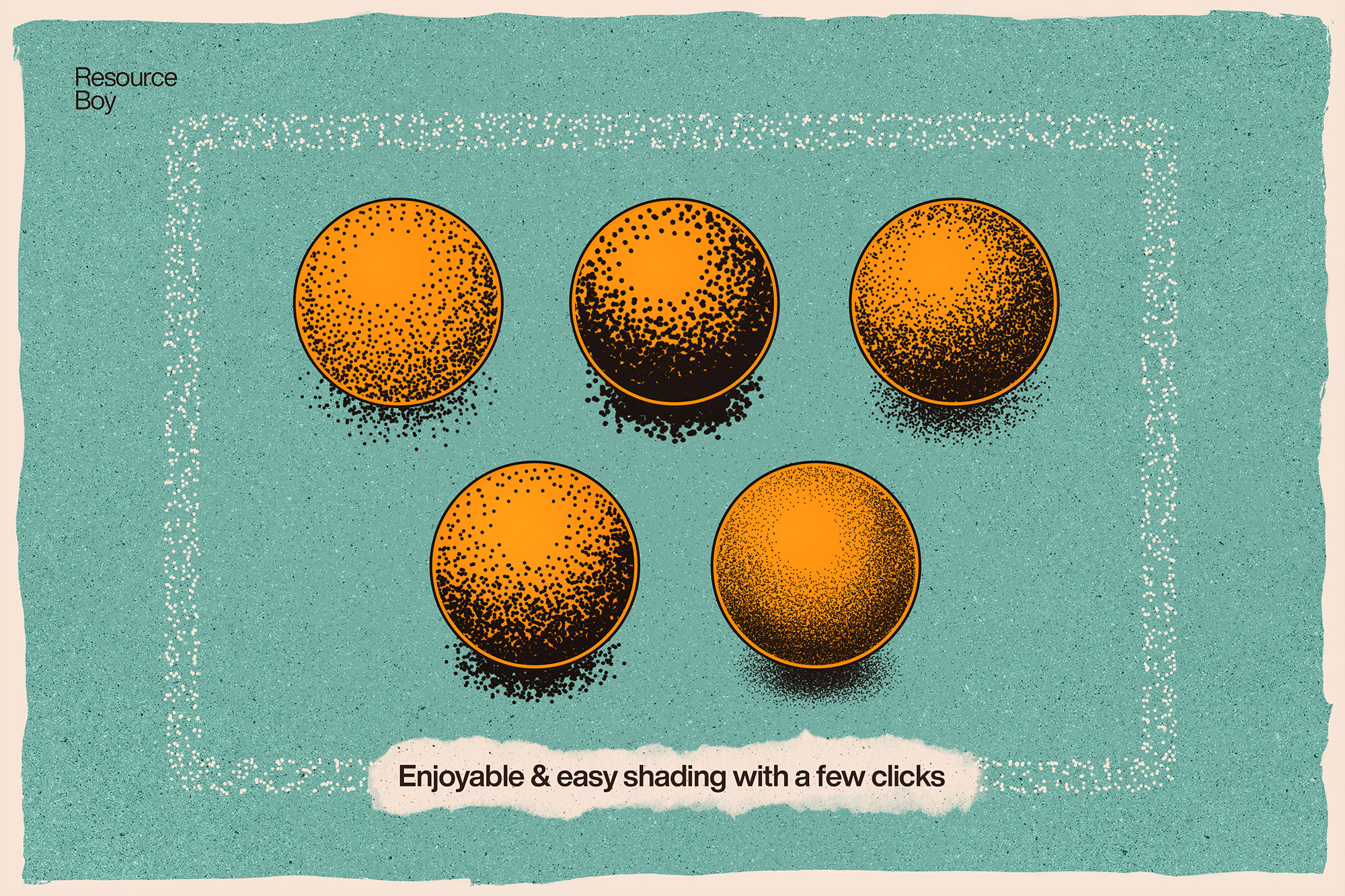
About 100 Stipple Shading Photoshop Brushes
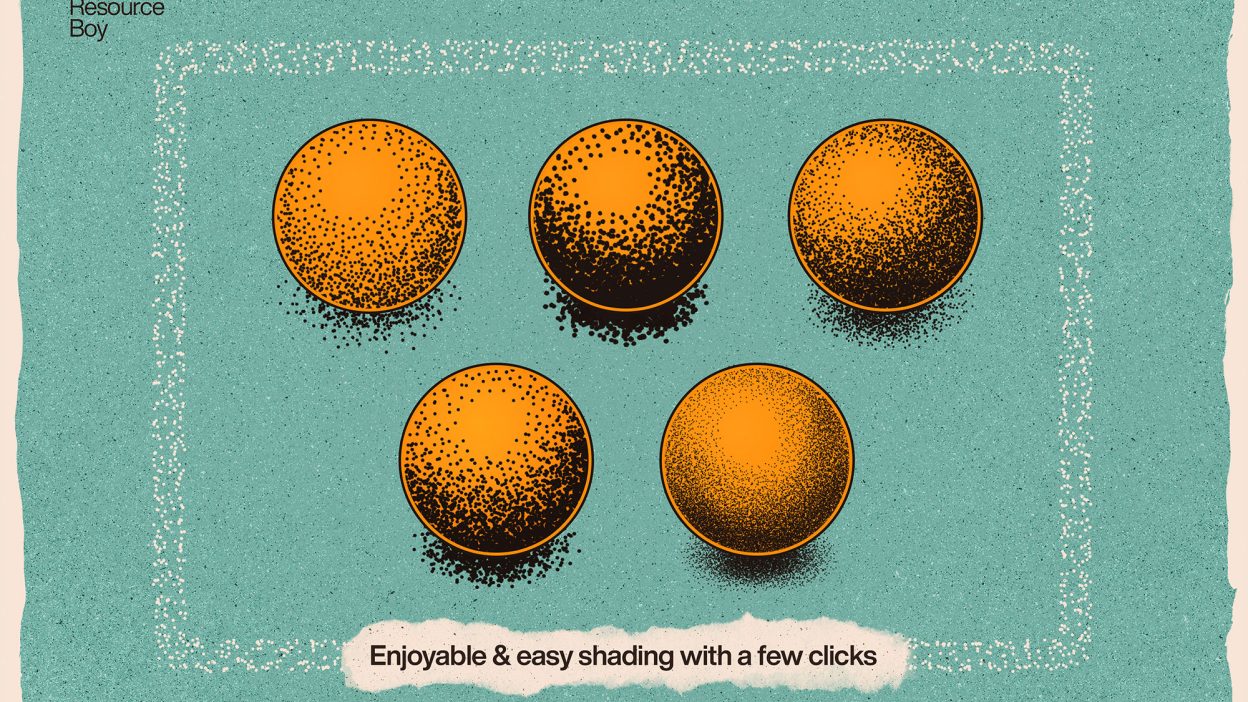
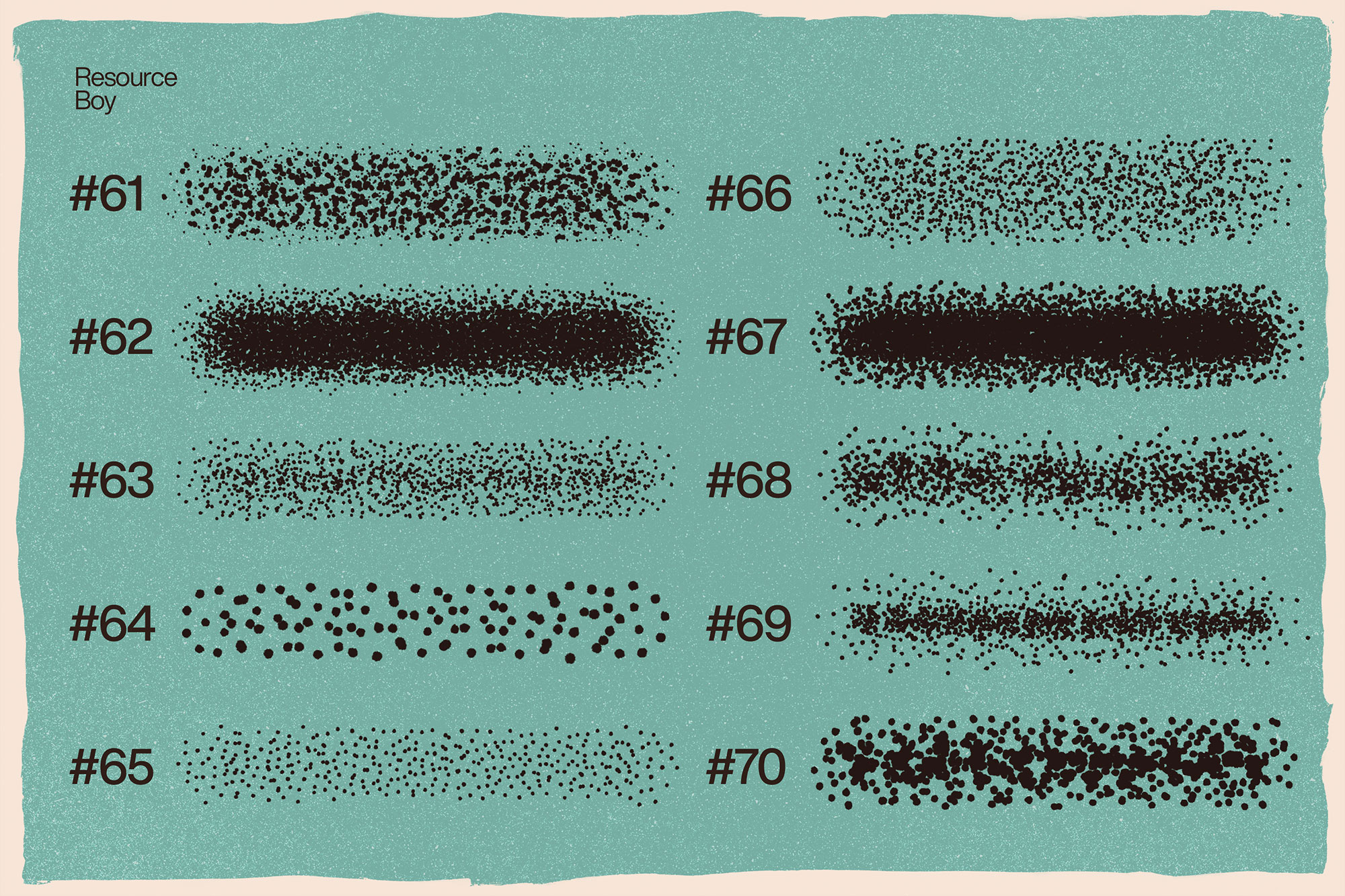
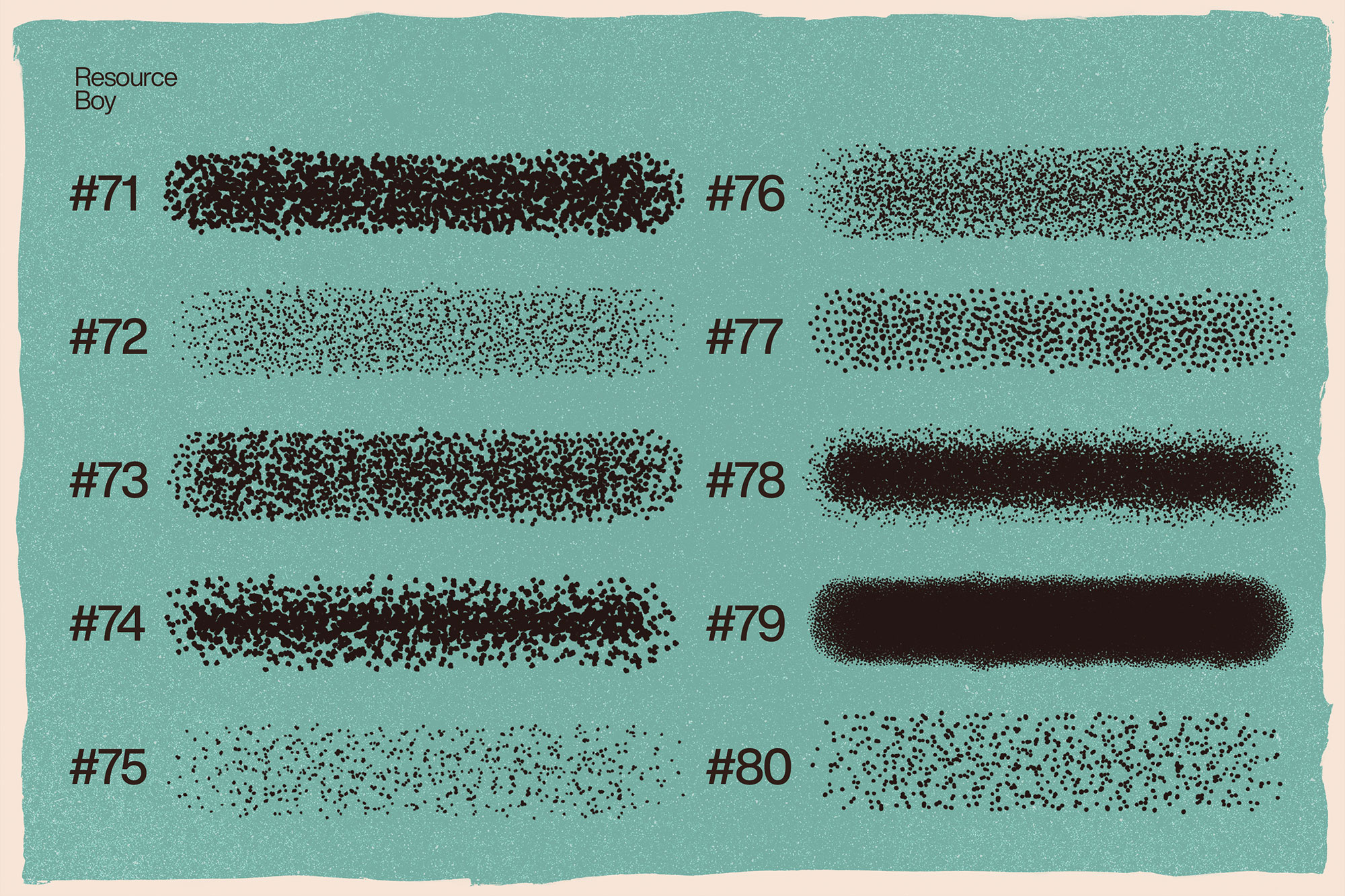
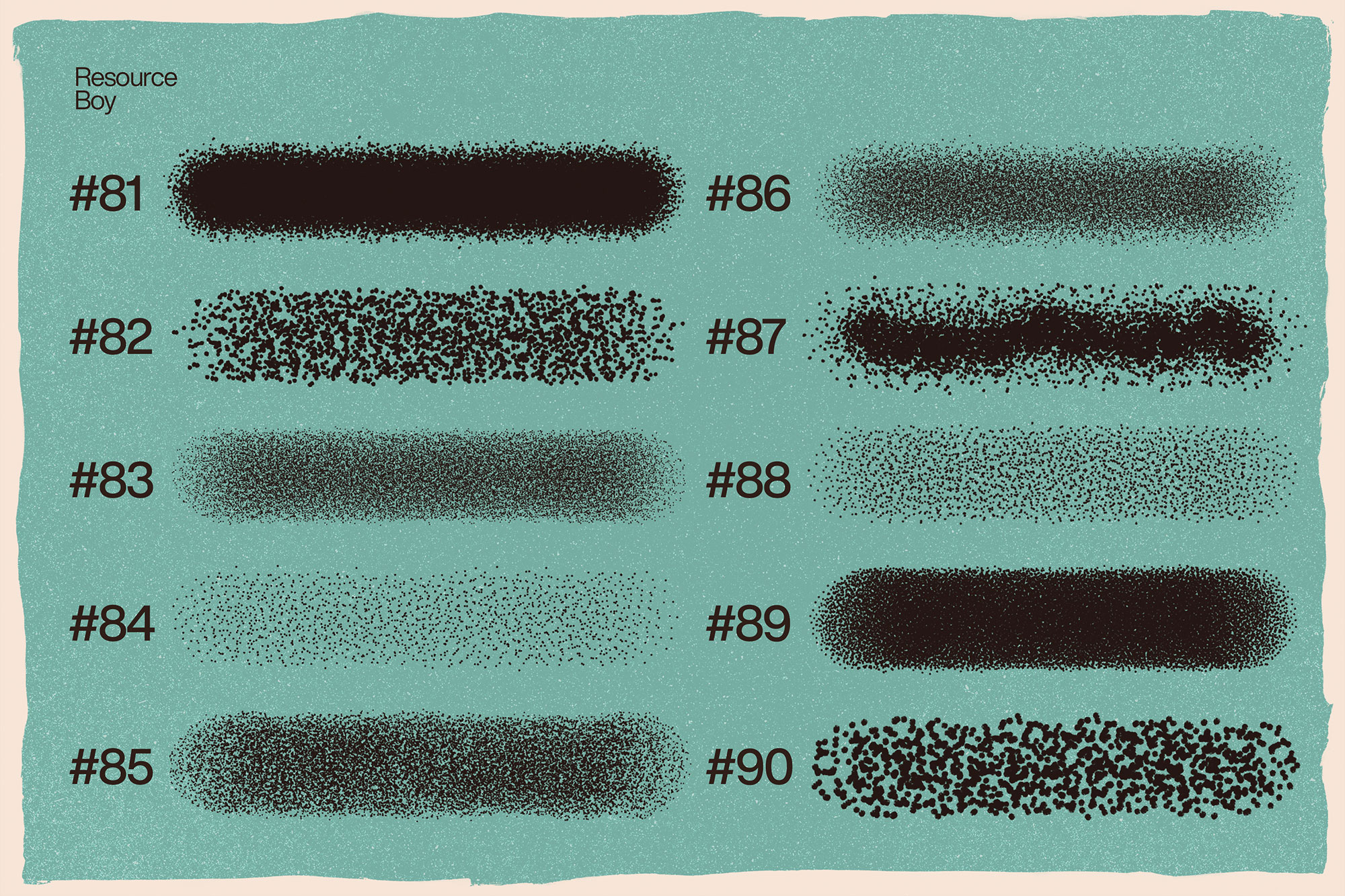
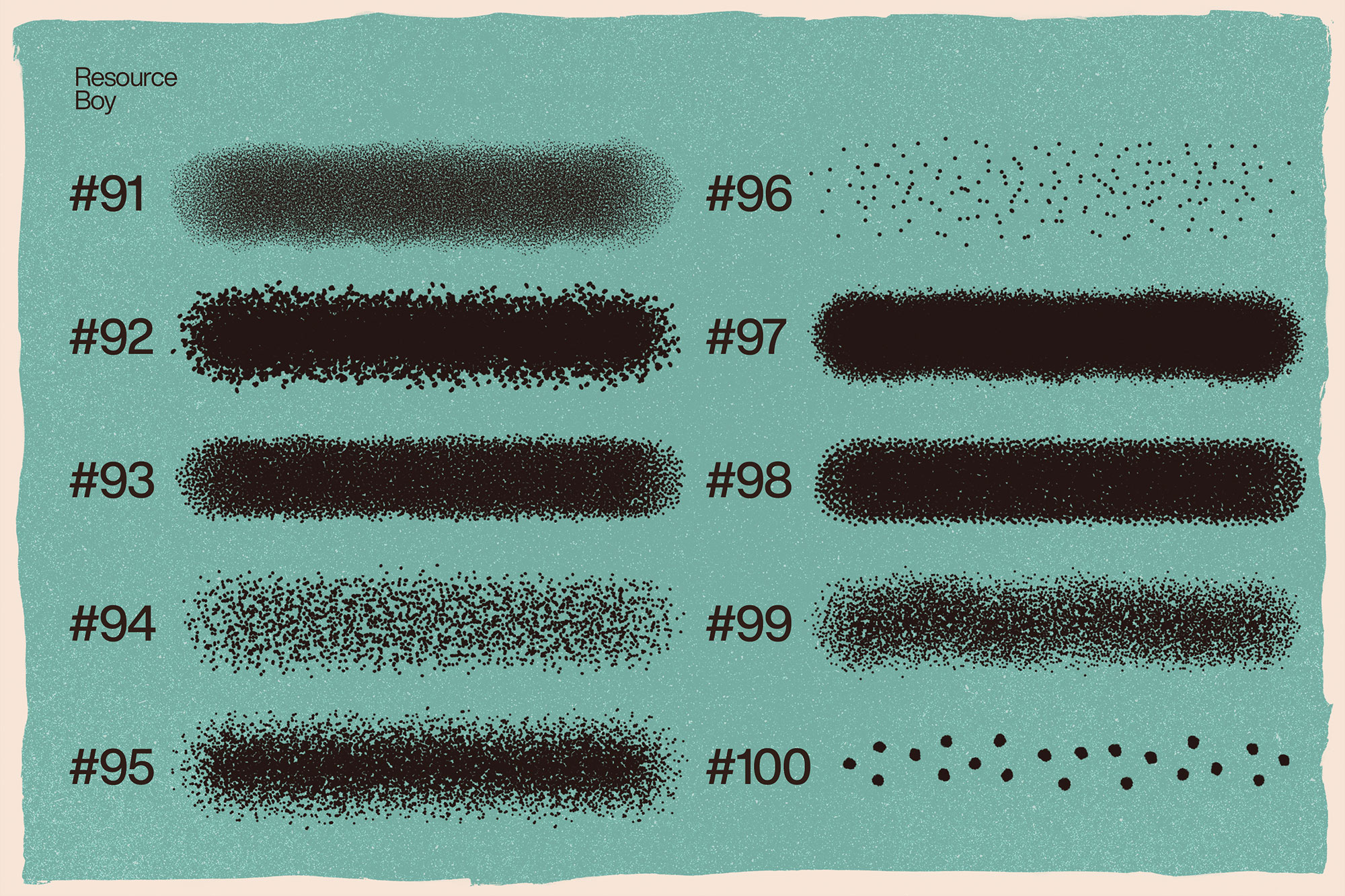
Not every asset deserves a spot in your toolbox. 100 Stipple Shading Photoshop Brushes is one of the few that actually earns it. It’s made for Adobe Photoshop, and the previews show what you can expect.
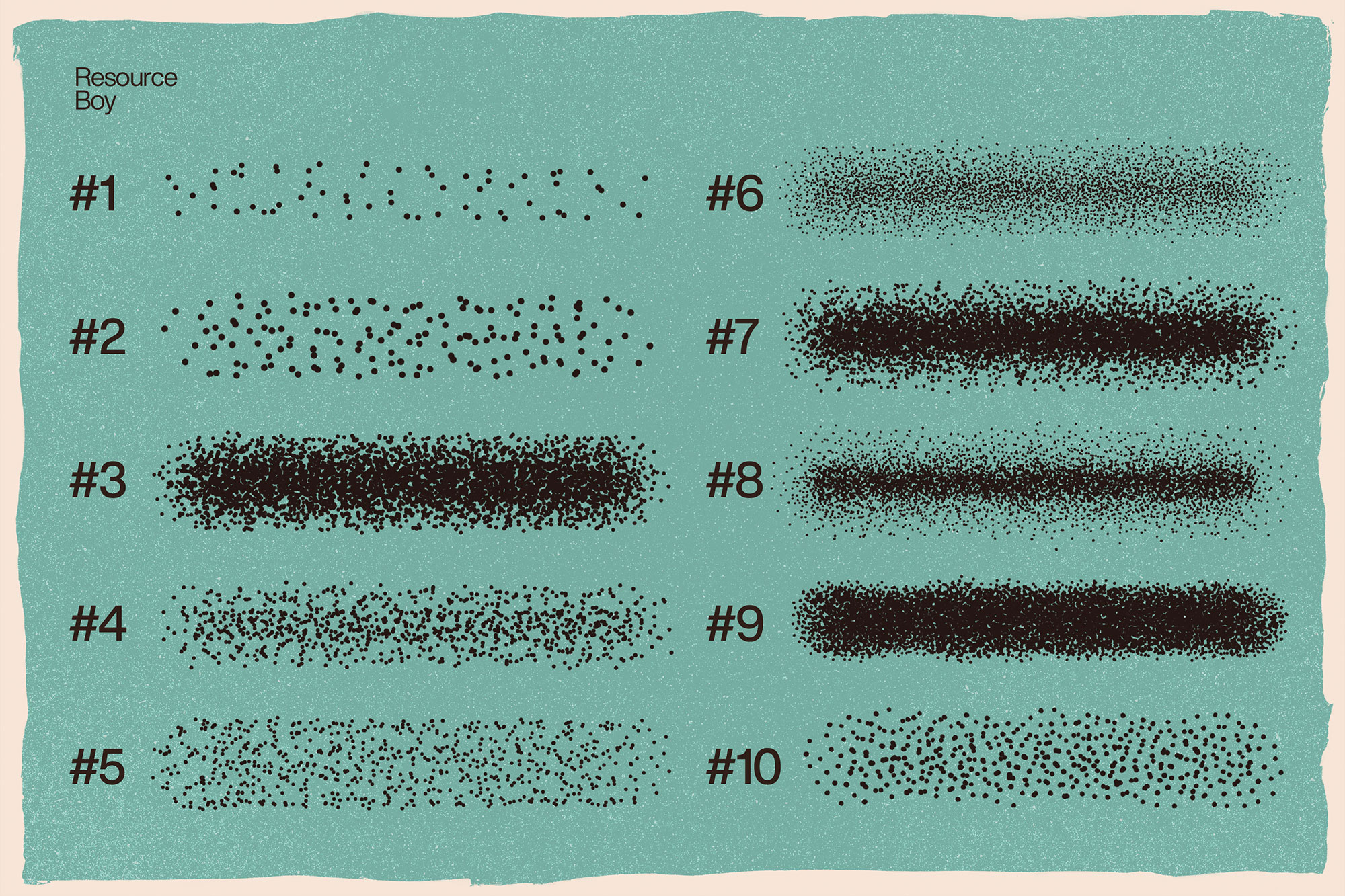
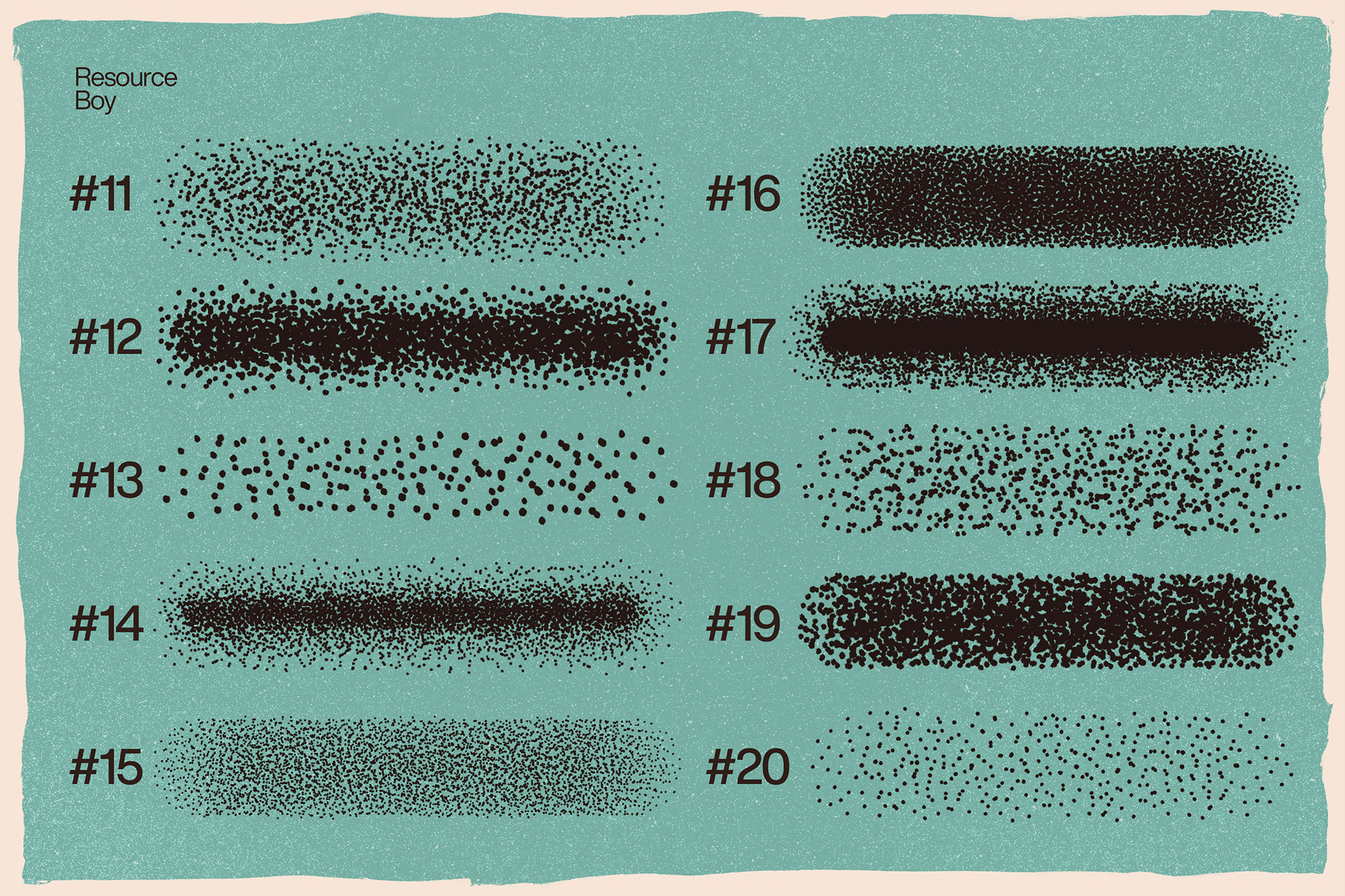
The chance to find the world’s number one stipple brush collection is one thing, but to be lucky enough not to pay anything for it is a whole other level. That’s right! You’re about to get your hands on more than 100 stipple brushes with no download fee. Plus, the free commercial license allows you to add them wherever you desire and have all the fun you want with them. That’s normally not the case with a great handmade work of art like this, especially with such an excellent variety of dots, their size, and arrangement, first drawn on paper and then digitalized at the highest resolution possible. With all the steps we’ve gone through for this selection, reaching the perfect output is guaranteed. Without even having to be a pro, you get to crush any of your next projects with a nice retro visual effect like nothing else. You’ll find a couple of examples of how these artistic stipples come in handy in different designs of yours. Also, feel free to get more creative and share your inspirations with us on social media. We’ve done our part by bringing this huge pack of top-level stipple Photoshop brushes to you, so now it’s your turn to show everyone what you’ve got!
Quick details: License: Personal & Commercial use. Designer: Resource Boy. Popularity: 34,692 downloads.
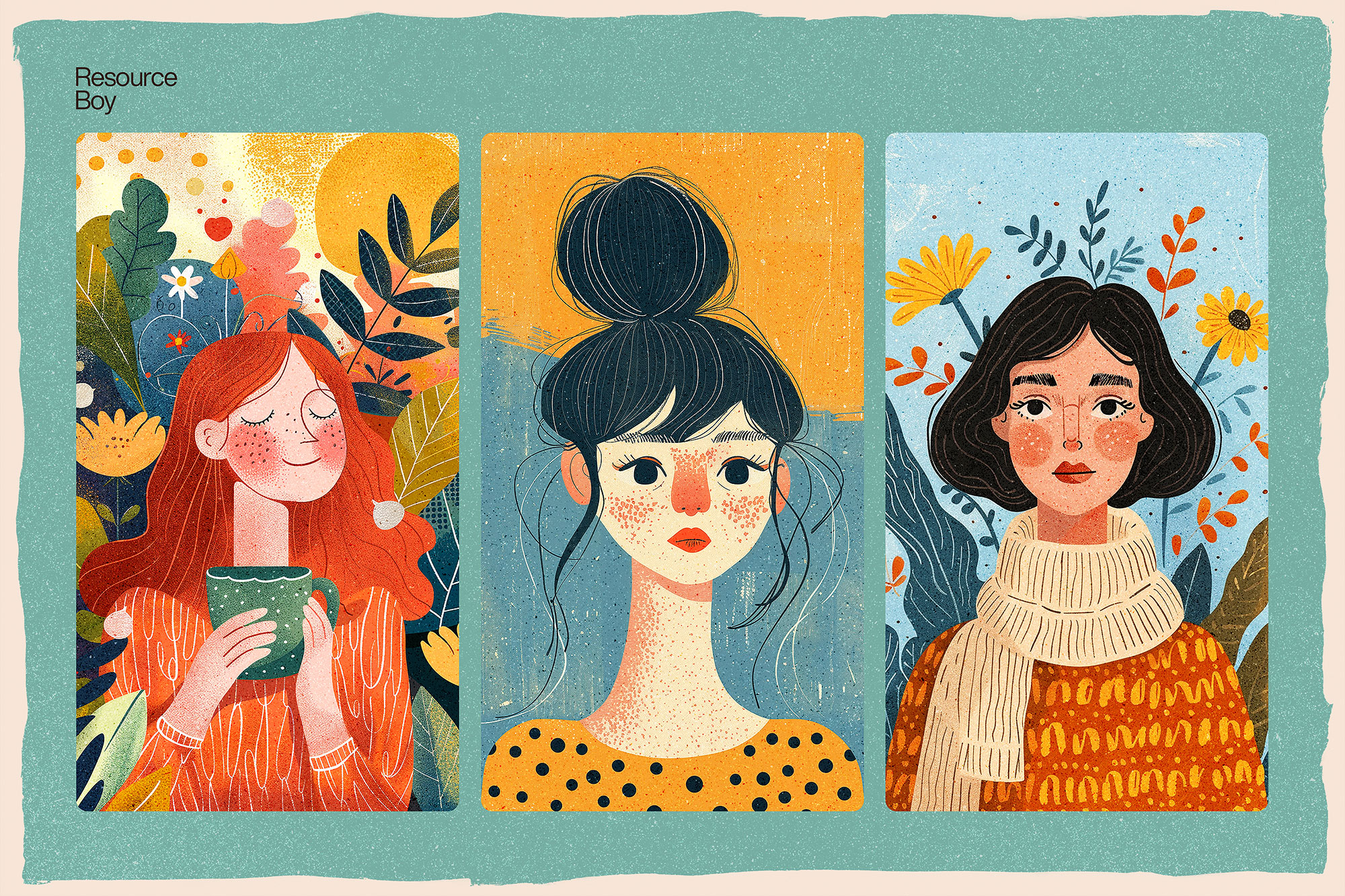
What you can do with it
You can keep it subtle or push it loud—either way, it stays usable. Use it for packaging concepts, album covers, brand headlines, or any layout where you want a cleaner visual hook.
How to use it in Adobe Photoshop
Download, unzip, load the asset, then tweak until it fits your design.
- Download the ZIP file using the button below.
- Unzip the archive to a clean folder.
- Open Adobe Photoshop and load the included files (brushes via the Brushes panel; textures via Place/Embed; mockups/effects by editing Smart Objects).
- Apply it to your text or layer, then adjust size and position.
- Fine-tune opacity, blending mode, and color until the result feels balanced.
Practical tips
- Try a different blending mode before you give up on the look.
- Use Smart Objects when possible for clean scaling.
- Lower opacity first, then adjust contrast.
- Test it on both light and dark backgrounds.
- Duplicate your layer before applying anything.
If something looks “too much,” small changes usually fix it. Opacity, blending mode, and a soft mask solve most issues.
Preview images
These previews are included with the original post so you can judge edges, texture strength, and readability.
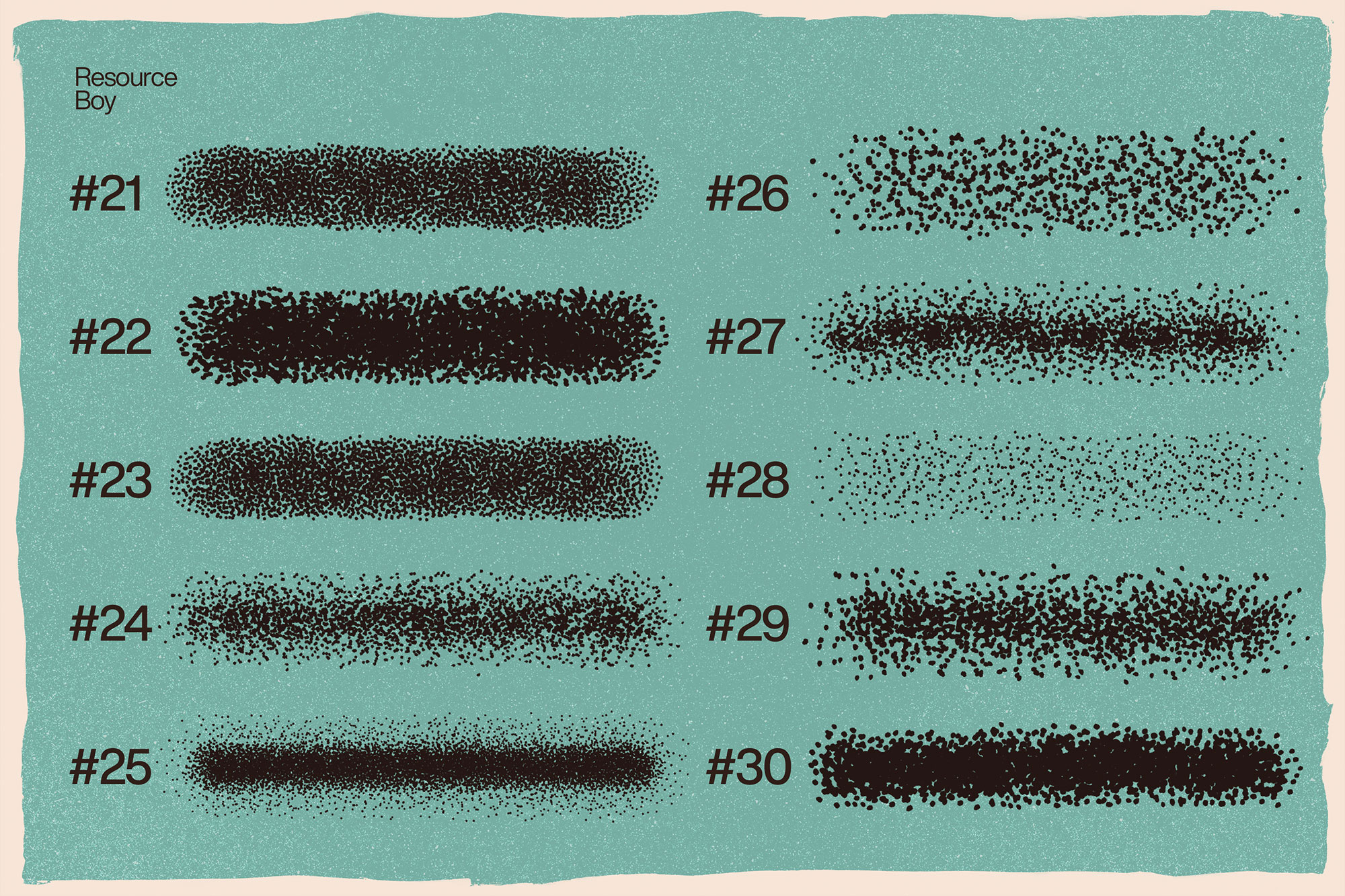
More previews
Extra images are placed here so you can scan the look quickly.
FAQ
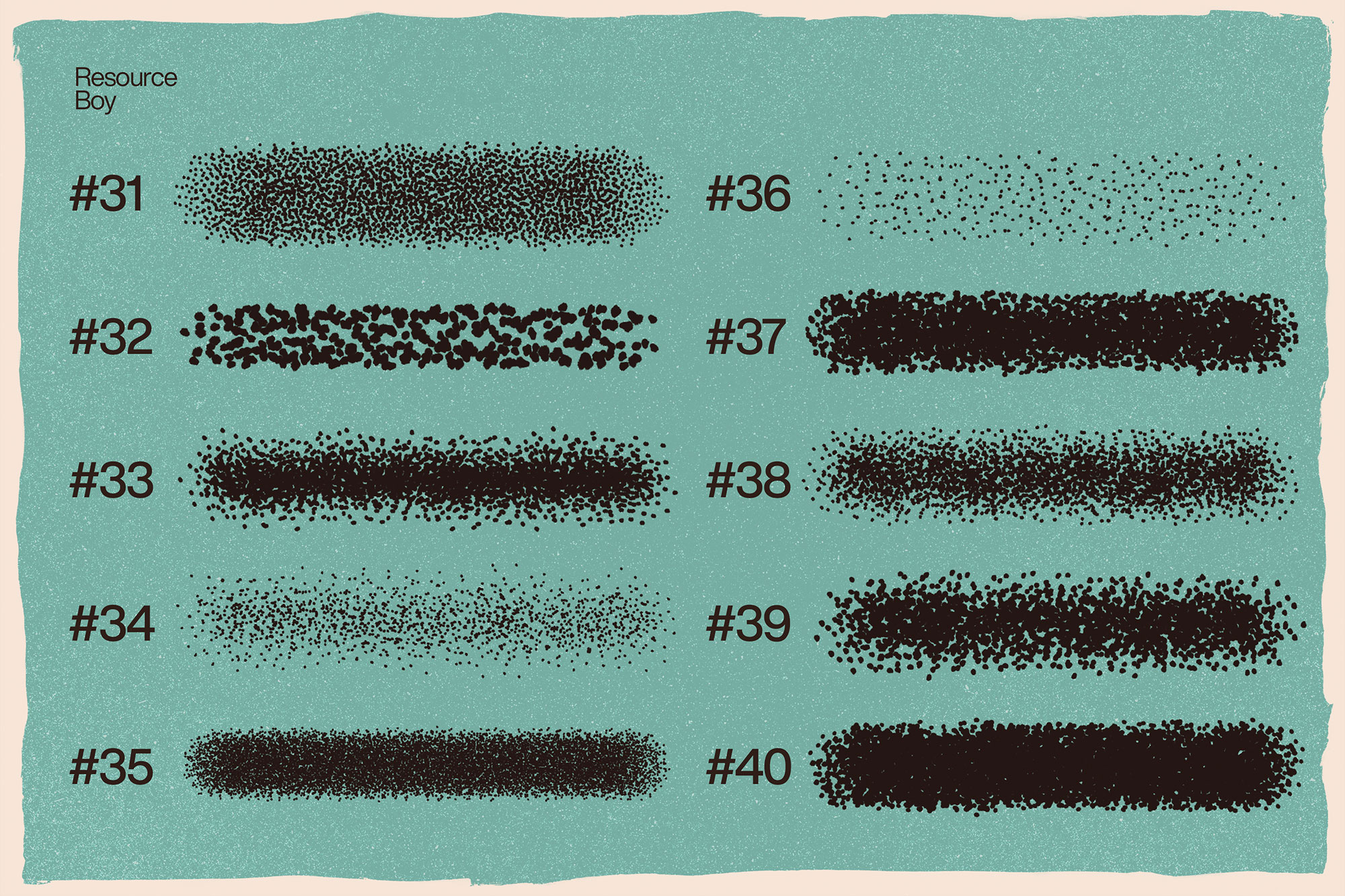
Preview image
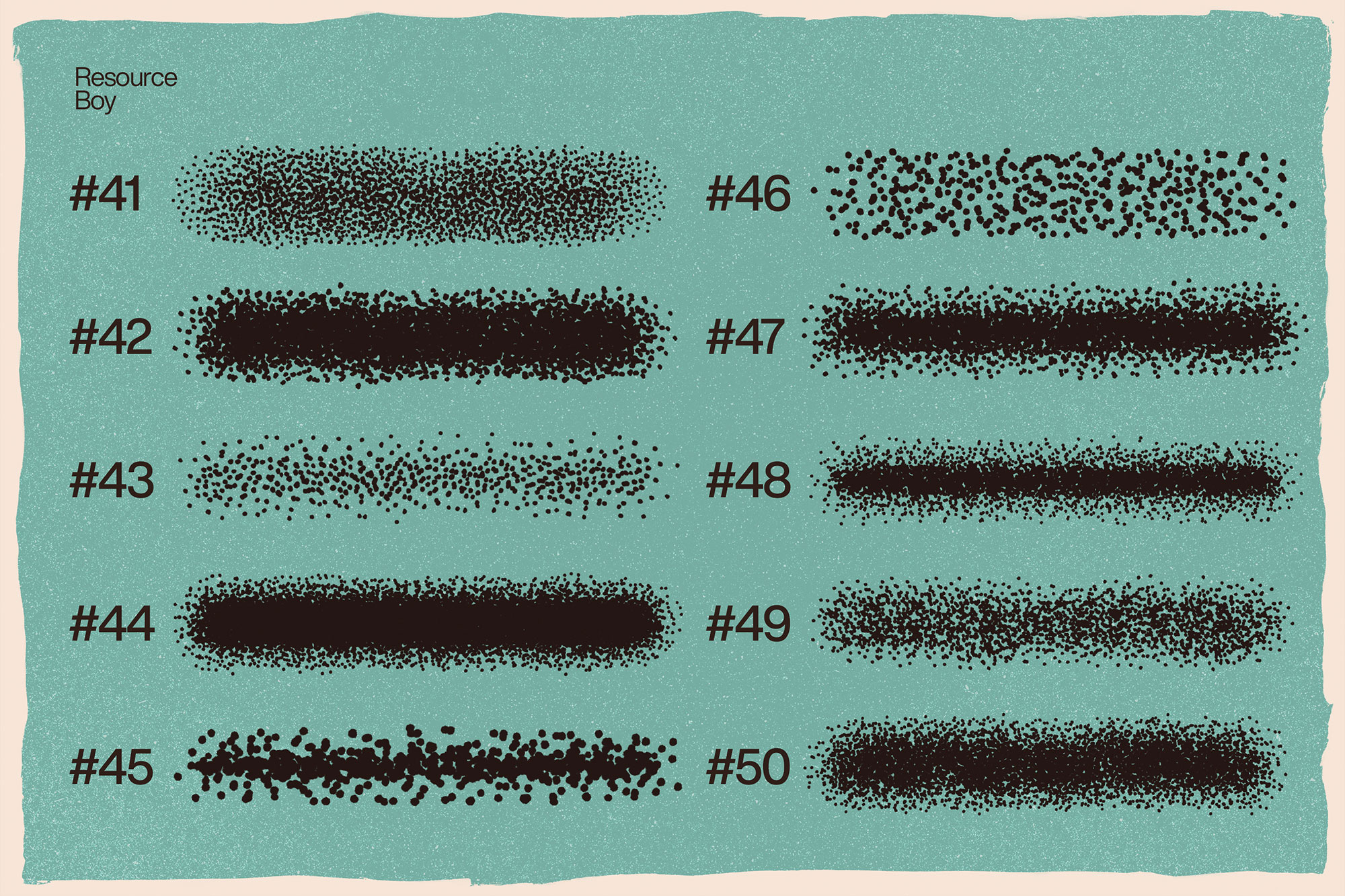
Preview image
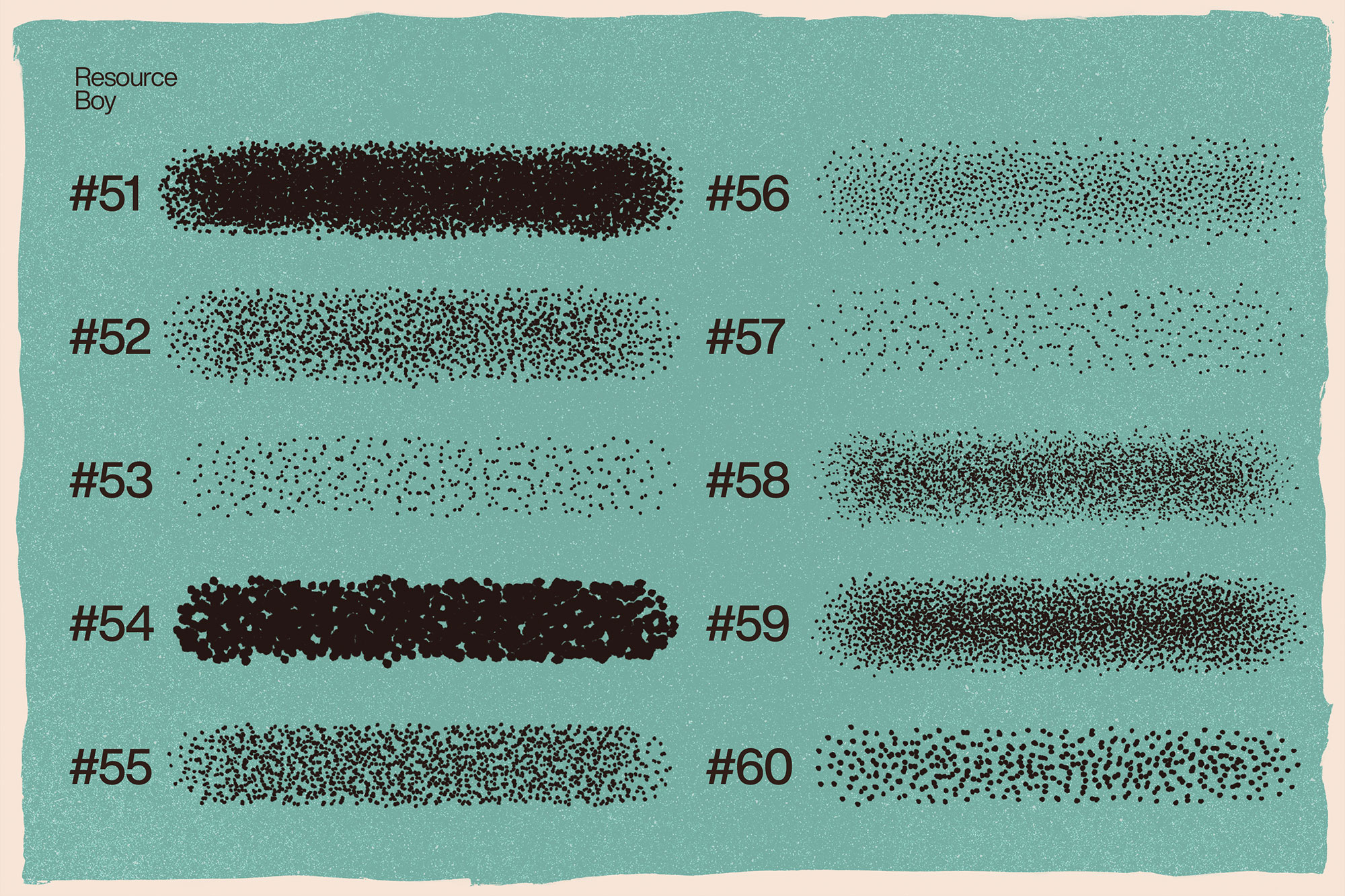
Preview image
Preview image
Preview image
Preview image
Preview image
Can I use it in client work?
The listed license is Personal & Commercial use. For important jobs, read the license text inside the download.
Will it work on older versions?
Most assets like this work fine on recent versions of Adobe Photoshop. If you’re on an older build, test it in a duplicate file first.
Download 100 Stipple Shading Photoshop Brushes
Use the download button below. If your download is large, give it a minute to complete before extracting.