
About 100 Cloud Textures
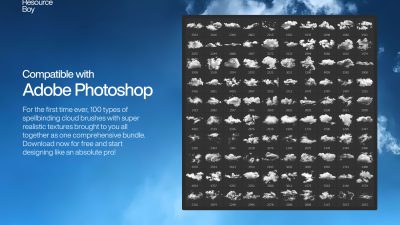
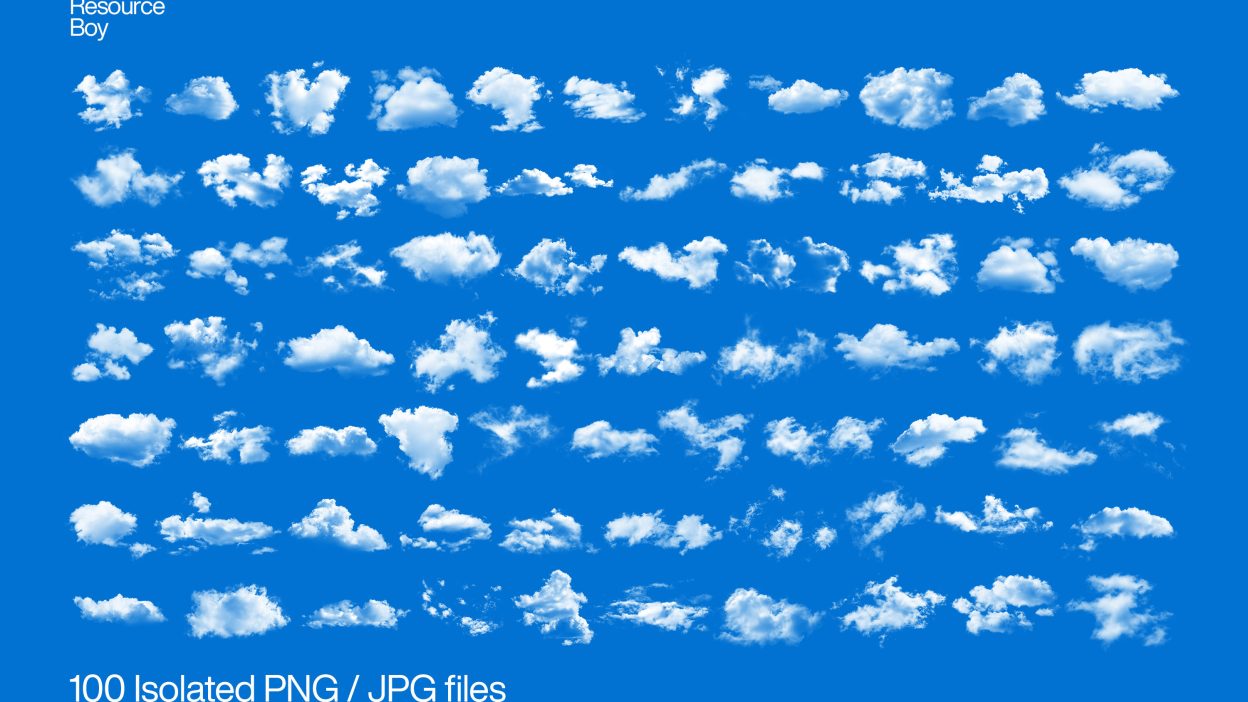
Not every asset deserves a spot in your toolbox. 100 Cloud Textures is one of the few that actually earns it. It’s made for Adobe Photoshop, and the previews show what you can expect.
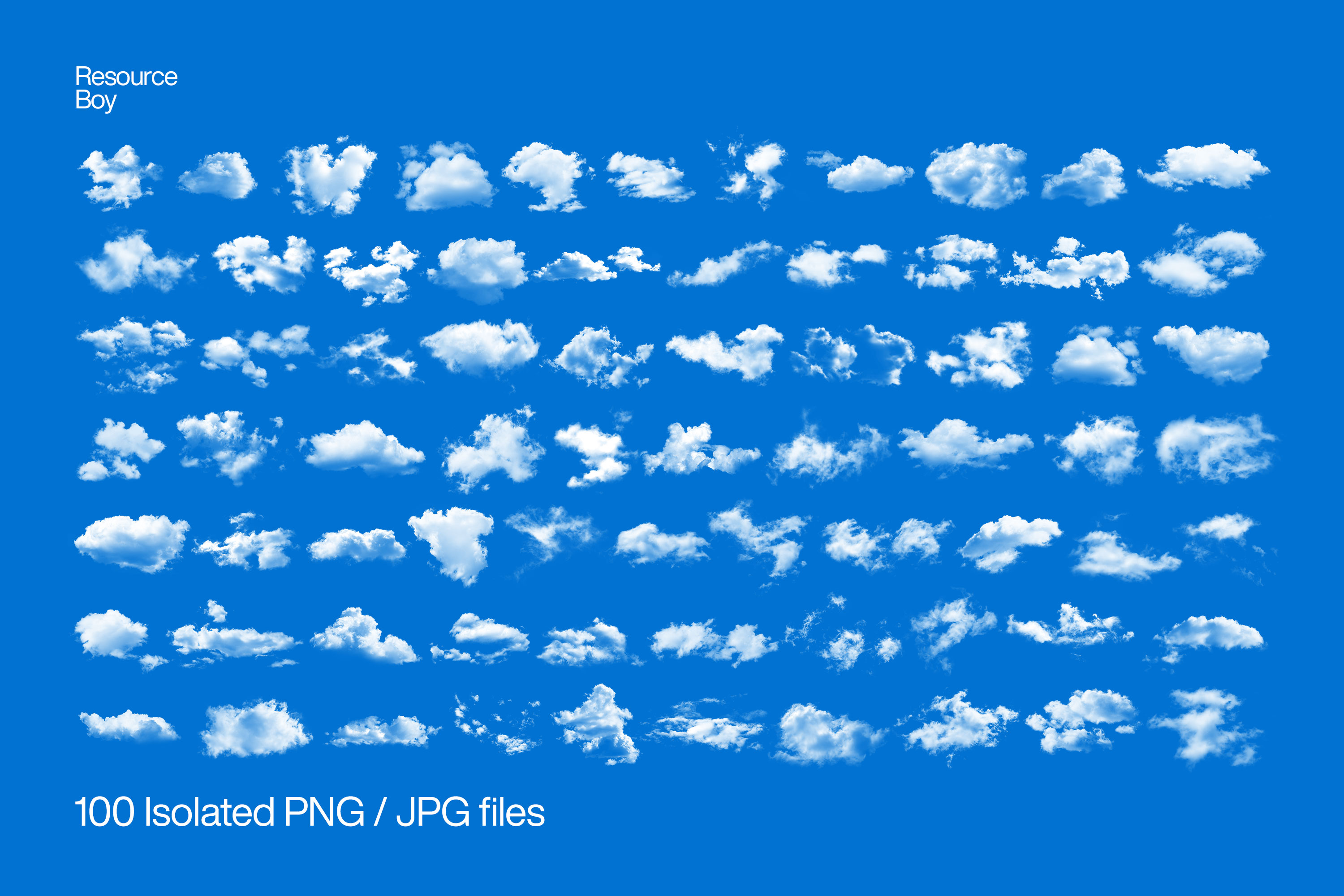
With 100 transparent cloud pieces, Resource Boy’s cloud texture collection easily ranks first as the largest and most thorough so far among its kind. The superb 4K resolution sells itself, and it’s totally incredible how you can download it right now and pay absolutely nothing. How does that even work? Right? We want to say it works wonders, but you’ll see it yourself any second now! After we blew your mind last time with our unique cloud Photoshop brushes, we figured why not do it again, but this time more practically? See, at that point, we had all the resources we needed from our last experience with clouds. We took those exact same gorgeous could photos we used for our brush collection and turned it into another masterpiece. And the result? Now you can use the same stunning impact on any other platform and not just Photoshop. That’s how we roll! 100 top-of-the-line isolated cloud textures in PNG format so that you can “Paint the sky, make it yours.”
Quick details: License: Personal & Commercial use. Designer: Resource Boy. Popularity: 57,835 downloads.
What you can do with it
It plays nicely with real-world files, not just perfect demo PSDs. Use it for posters, brand headlines, landing page hero sections, or any layout where you want a cleaner visual hook.
How to use it in Adobe Photoshop
Download, unzip, load the asset, then tweak until it fits your design.
- Download the ZIP file using the button below.
- Unzip the archive to a clean folder.
- Open Adobe Photoshop and load the included files (brushes via the Brushes panel; textures via Place/Embed; mockups/effects by editing Smart Objects).
- Apply it to your text or layer, then adjust size and position.
- Fine-tune opacity, blending mode, and color until the result feels balanced.
Practical tips
- Try a different blending mode before you give up on the look.
- Lower opacity first, then adjust contrast.
- Duplicate your layer before applying anything.
- Use Smart Objects when possible for clean scaling.
- Test it on both light and dark backgrounds.
If something looks “too much,” small changes usually fix it. Opacity, blending mode, and a soft mask solve most issues.
Preview images
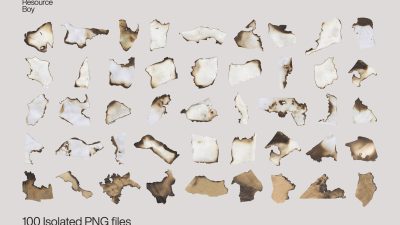
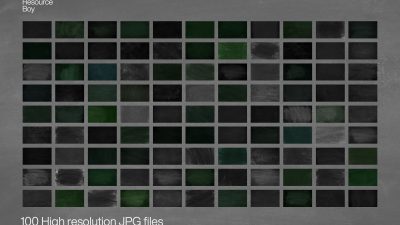
These previews are included with the original post so you can judge edges, texture strength, and readability.
FAQ
Can I use it in client work?
The listed license is Personal & Commercial use. For important jobs, read the license text inside the download.
Will it work on older versions?
Most assets like this work fine on recent versions of Adobe Photoshop. If you’re on an older build, test it in a duplicate file first.
Download 100 Cloud Textures
Use the download button below. If your download is large, give it a minute to complete before extracting.