
About 250 Light Leak Overlays
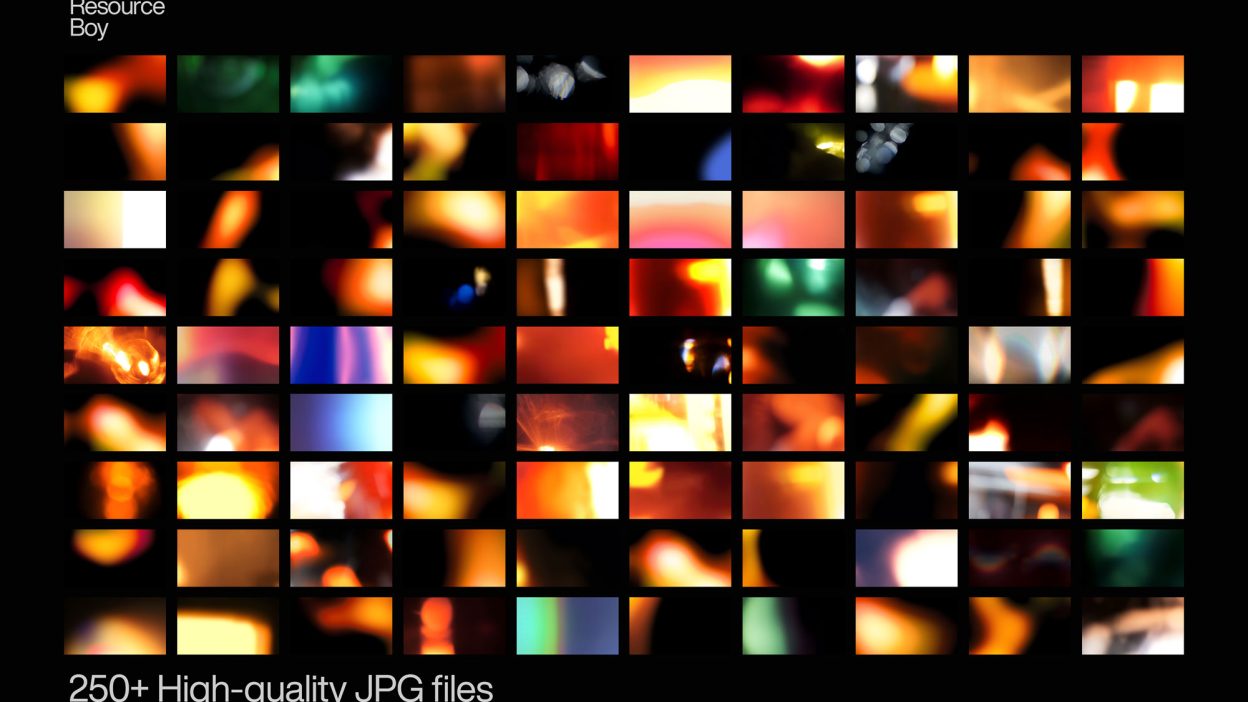
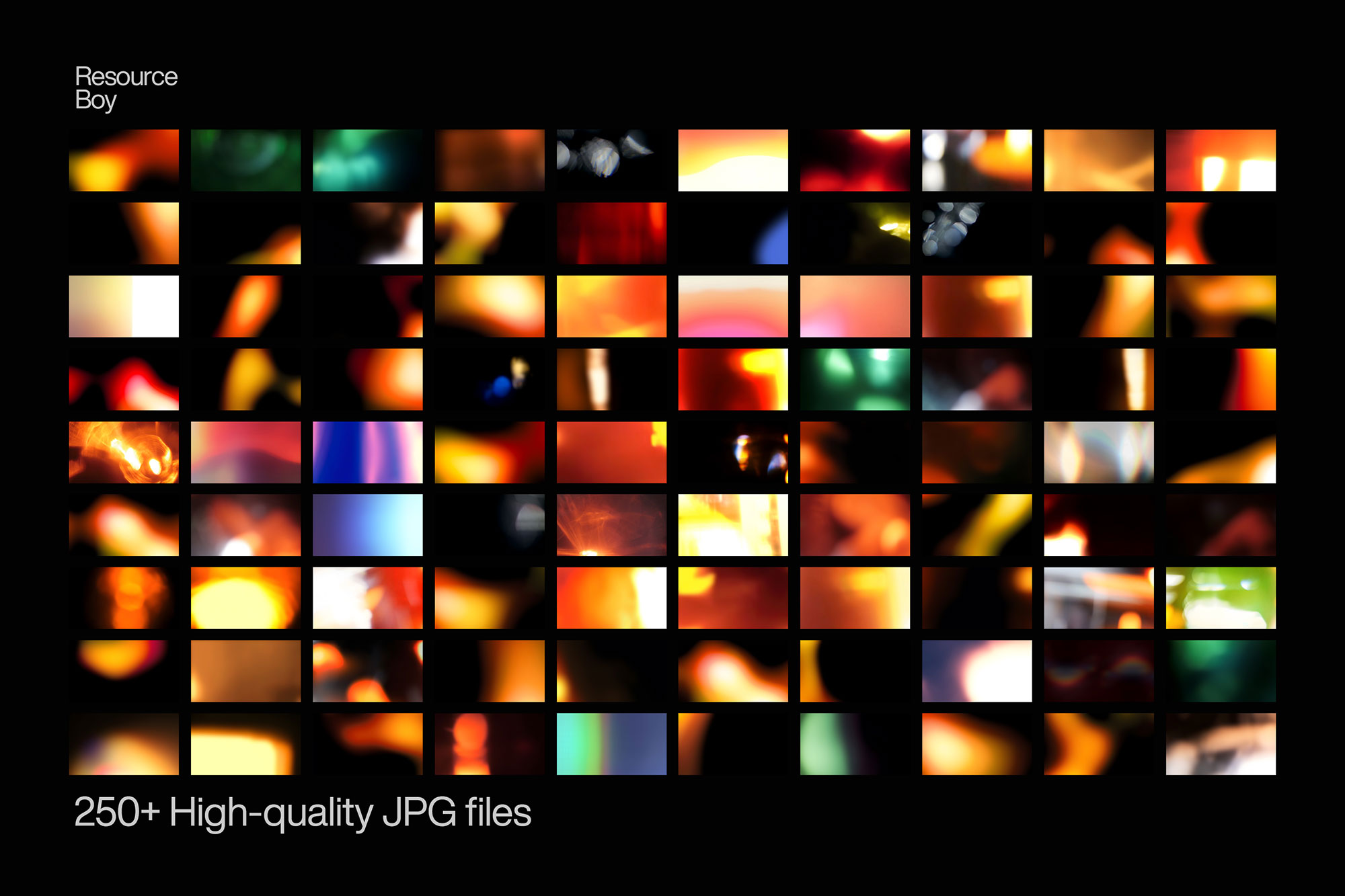
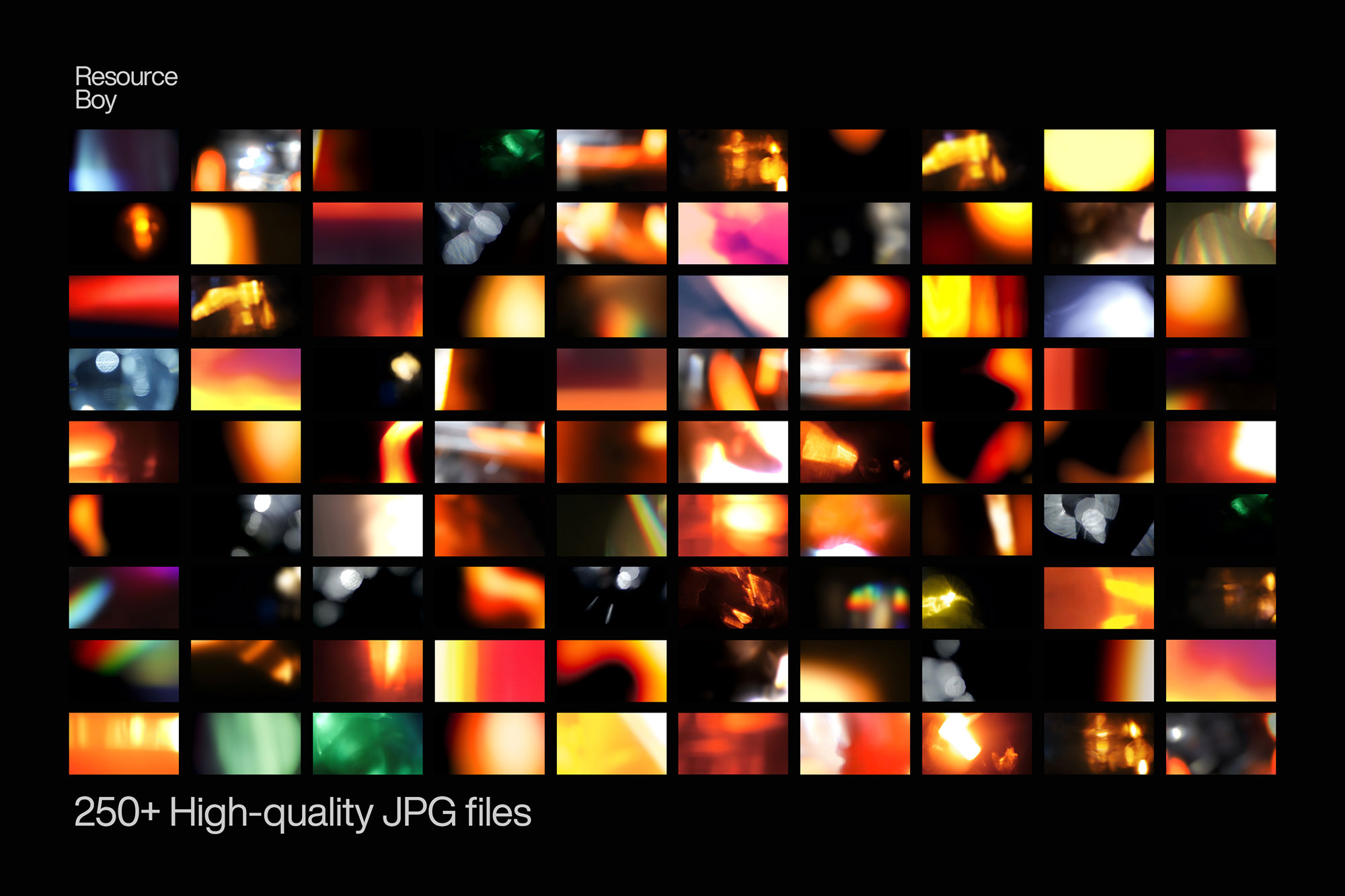
Not every asset deserves a spot in your toolbox. 250 Light Leak Overlays is one of the few that actually earns it. It’s made for Adobe Photoshop, and the previews show what you can expect.
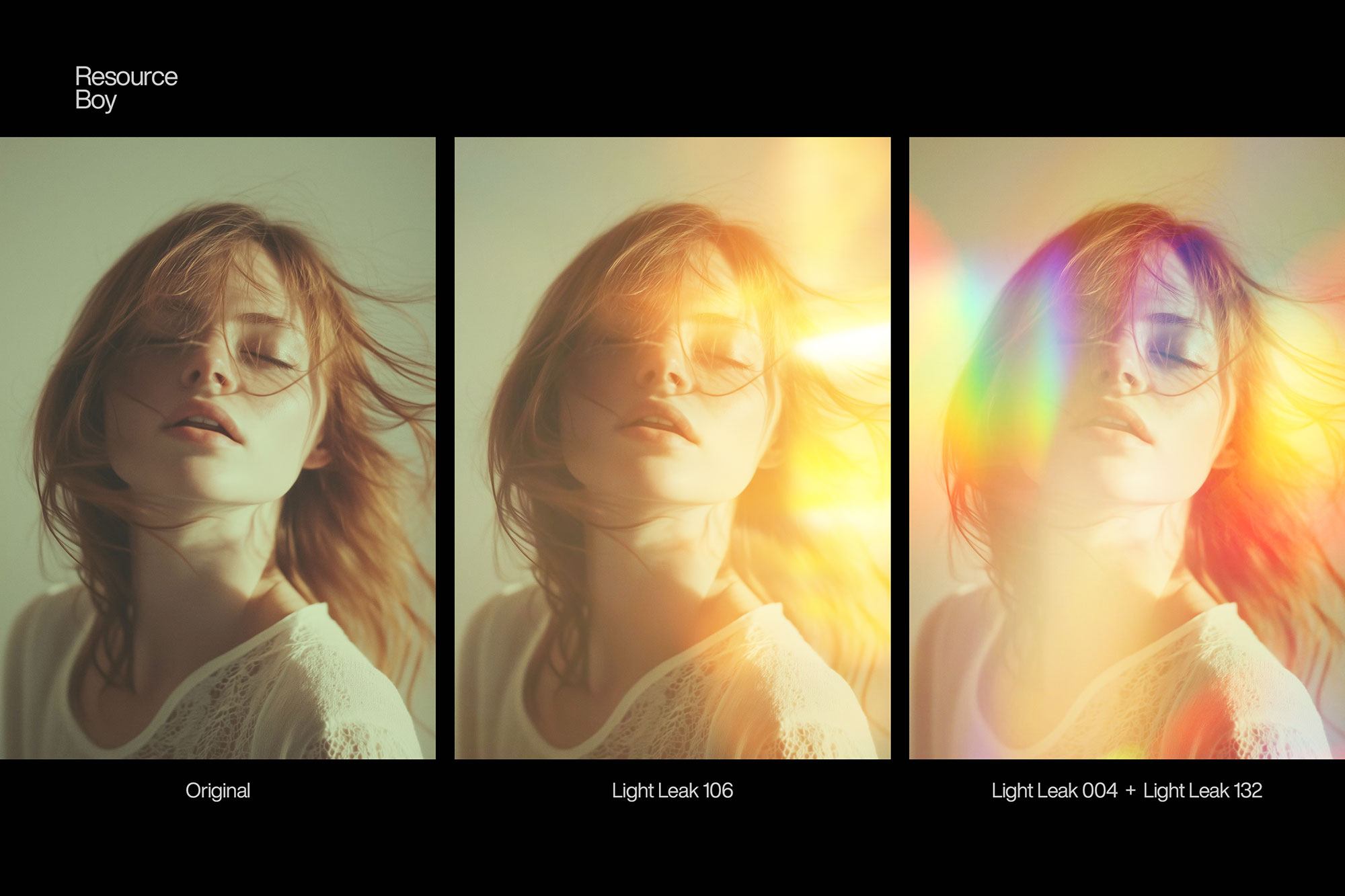
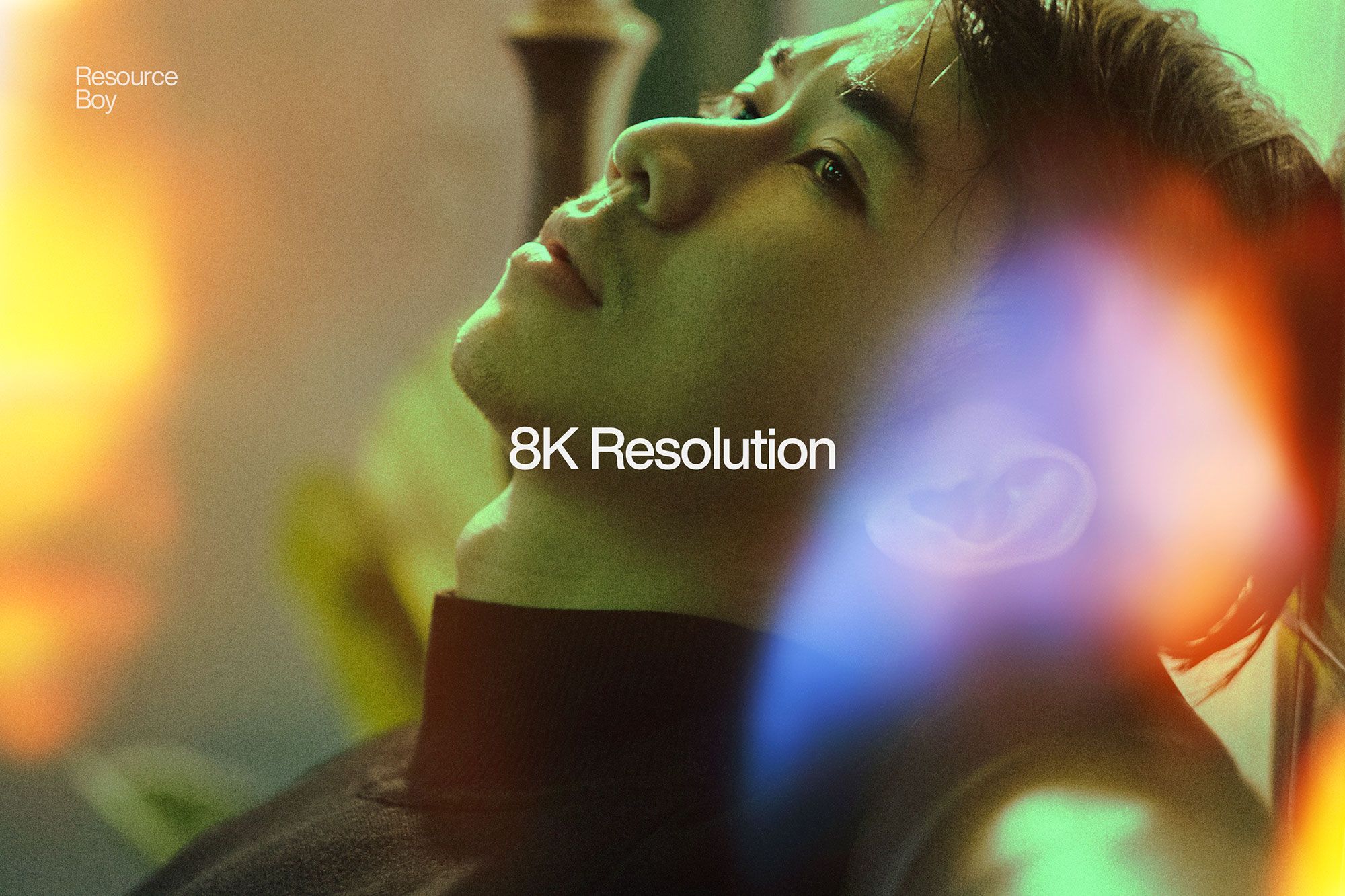
Introducing our exclusive 250 Light Leak Overlays the ultimate collection for photographers, designers, and creatives who want to add a touch of cinematic magic to their visuals. With 8K ultra-high-definition quality, these overlays bring natural, glowing light effects to your photos, creating a warm and dreamy atmosphere with just a few clicks. Whether you’re aiming for a subtle vintage glow or a dramatic burst of color, this set offers endless possibilities. Designed for seamless blending, these light flare overlays effortlessly enhance portraits, landscapes, and digital artwork, elevating your projects with a professional, polished look. As part of our premium design resources, this free texture collection delivers exceptional depth and realism, making it a must-have in your creative toolkit. Each overlay is crafted to mimic real-world lighting conditions, adding authenticity and character to your images. Perfect for photographers looking to create stunning backlit effects or designers enhancing their compositions, these overlays work flawlessly with any editing software. Don’t forget to explore our range of lens flare overlays and shadow overlays to complete your artistic vision with soft, natural-looking depth and dimension. Download this freebie today and transform your visuals with effortless brilliance!
Quick details: License: Personal & Commercial use. Designer: Resource Boy. Popularity: 44,890 downloads.
What you can do with it
It’s editable, flexible, and pretty forgiving if you like to experiment. Use it for posters, album covers, social banners, or any layout where you want a cleaner visual hook.
How to use it in Adobe Photoshop
Download, unzip, load the asset, then tweak until it fits your design.
- Download the ZIP file using the button below.
- Unzip the archive to a clean folder.
- Open Adobe Photoshop and load the included files (brushes via the Brushes panel; textures via Place/Embed; mockups/effects by editing Smart Objects).
- Apply it to your text or layer, then adjust size and position.
- Fine-tune opacity, blending mode, and color until the result feels balanced.
Practical tips
- Lower opacity first, then adjust contrast.
- Use Smart Objects when possible for clean scaling.
- Try a different blending mode before you give up on the look.
- Test it on both light and dark backgrounds.
- Duplicate your layer before applying anything.
If something looks “too much,” small changes usually fix it. Opacity, blending mode, and a soft mask solve most issues.
Preview images
These previews are included with the original post so you can judge edges, texture strength, and readability.
FAQ
Can I use it in client work?
The listed license is Personal & Commercial use. For important jobs, read the license text inside the download.
Will it work on older versions?
Most assets like this work fine on recent versions of Adobe Photoshop. If you’re on an older build, test it in a duplicate file first.
Download 250 Light Leak Overlays
Use the download button below. If your download is large, give it a minute to complete before extracting.